
Documentation / Settings Page Overview
Settings Page Overview
Accessing the Settings Page
Navigate to Settings → Custom Login in the WordPress admin sidebar. The settings page opens with a panel-based interface on the left and a live preview of the login page on the right.
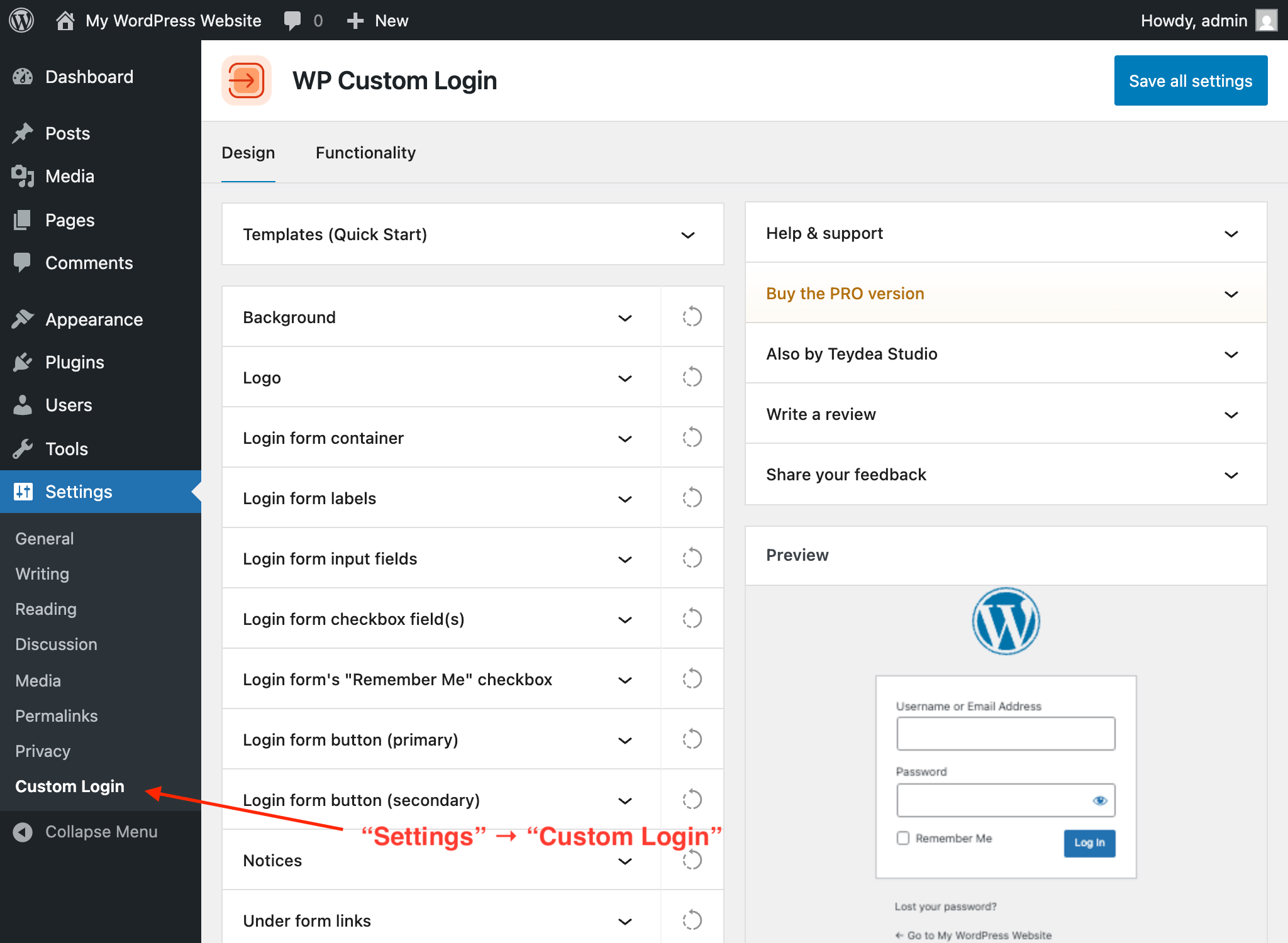
Settings Page Layout
The page is divided into two main areas:
- Settings panels (left side) — Expandable panels organized into tabs. Each panel controls a specific element of the login page.
- Live preview (right side) — An interactive preview that updates in real time as you change settings. This shows exactly how the login page will appear to visitors.
Tabs
The available tabs depend on whether you are using the free or PRO version:
Design Tab
The Design tab contains all visual customization panels:
- Background — Page background color and image (replaced by Layout & background in the PRO version)
- Logo — Logo image, source, link, and alignment
- Login form container — Form box styling and positioning
- Login form labels — Form field label text and typography
- Login form input fields — Text input styling and placeholder text
- Login form checkbox field(s) — Checkbox appearance and checkmark icon
- Login form’s “Remember Me” checkbox — Visibility and label of the “Remember Me” checkbox
- Login form button (primary) — Log In / Register button styling
- Login form button (secondary) — Secondary action button styling
- Notices — Error, notice, and success message styling
- Under-form links — Links below the form (Lost Password, Register)
- Social media links — Social icon links displayed on the login page
- Privacy Policy link — Privacy policy link visibility and styling
- Language switcher — Language switcher visibility and spacing (when multiple languages are installed)
- Footer — Custom footer text below the login form
- Custom CSS — Additional CSS rules for the login page
- Templates (Quick Start) — Pre-designed login page designs (PRO)
Functionality Tab
The Functionality tab contains behavior-related options under the Miscellaneous panel. See Functionality Options for details. In the PRO version, the Redirect rules after login and Login URL panels are also available here.
General Settings Tab (PRO)
The PRO version adds a General settings tab for managing your license key. See License Key and Updates for details.
Saving Your Changes
After adjusting settings, click the Save all settings button at the top-right of the page. A confirmation message appears when the settings are saved. Your changes are immediately applied to the login page.
Help and Support Links
At the top of the settings page, you will find a help icon that provides links to the support forum, plugin author contact, and the WordPress.org plugin directory page.
FAQ
Find Answers to Common Questions
Browse these frequently asked questions to get quick answers about our plugin, features, and support.
Will This Plugin Work on My WordPress Website?
This plugin does not depend on any third-party libraries, plugins, or themes. It will work seamlessly on any WordPress website.
Does the Plugin Support My Language?
This plugin is translation-ready, enabling you to easily translate its content into your preferred language using any translation tool or plugin. By default, the plugin is provided in English.
What Are the Technical Requirements for This Plugin?
This plugin requires WordPress version 6.6 or later and PHP version 7.4 or later. It doesn’t require additional libraries or special hosting configurations.
The plugin has been tested up to WordPress 6.9 and PHP 8.3.
What Is Your Refund Policy?
We offer a risk-free, 30-day money-back guarantee. If you’re not satisfied with the plugin for any reason, you can request a full refund within 30 days of your purchase – no questions asked.
Is This Plugin Actively Maintained?
Yes! This plugin is actively maintained and regularly tested for compatibility with the latest versions of WordPress and PHP. For detailed information about updates, please refer to the changelog.
What Happens If I Don’t Renew My License?
You can continue to use the plugin even if your license expires; however, you will no longer receive plugin updates, new features, or access to support. Your license renews automatically each year unless canceled via the Customer Portal.
What Is the Difference Between the Free and PRO Versions?
The free version gives you full control over the login page’s visual design — custom logo, background color and image, form container styling, label and input field customization, primary and secondary button design, checkbox styling, notice and error message colors, under-form link styling, social media icons, custom footer, privacy policy link, language switcher controls, per-language text, and a custom CSS editor. You also get functionality options like disabling autofocus, the error shake animation, and browser autocomplete. Everything is configured from a visual settings page with a live preview.
The PRO version adds 20+ pre-designed templates you can apply in one click, advanced background options (multi-column split-screen layouts, image and video sliders, animated gradients, CSS image filters and color overlays), post-login redirect rules with per-role and per-user targeting, the ability to replace wp-login.php with a custom login URL, and priority support with automatic updates. See the pricing page for details.