
Documentation / Custom Login URL
Custom Login URL
Overview
By default, every WordPress site uses wp-login.php as the login page address. Since this path is well-known, it is a common target for automated brute-force attacks. The Login URL feature lets you replace wp-login.php with a custom path of your choosing, making your login page harder to find.
Enabling the Custom Login URL
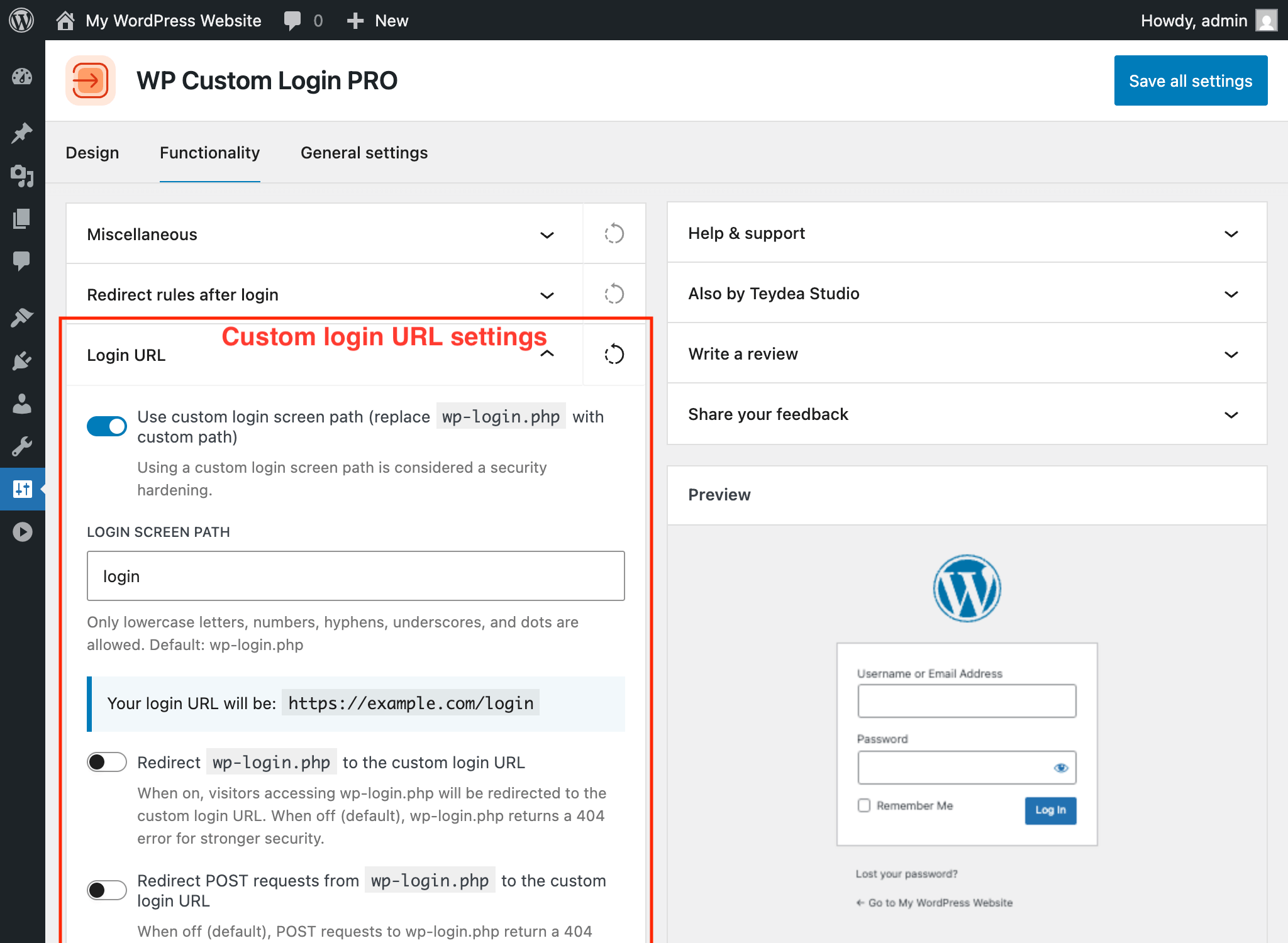
- Navigate to Settings → Custom Login.
- Open the Functionality tab.
- Expand the Login URL panel.
- Toggle Use custom login screen path to on.
Setting the Custom Path
After enabling the feature, a text field appears where you enter your custom login path. The path supports lowercase letters, numbers, hyphens, underscores, and dots, with a maximum length of 64 characters.
For example, entering my-login would make your login page accessible at https://yoursite.com/my-login.
A blue notice below the field shows your full login URL so you can verify it is correct before saving.
Reserved Paths
Certain paths are reserved by WordPress and cannot be used. If you enter a reserved path, an error notice appears. Reserved paths include: wp-admin, wp-content, wp-includes, wp-json, wp-cron, xmlrpc, wp-signup, wp-activate, wp-trackback, wp-links-opml, and wp-comments-post.
Handling Direct wp-login.php Access
Once a custom login URL is active, you control what happens when someone visits the original wp-login.php address:
Redirect to Custom URL (Off by Default)
The Redirect wp-login.php to the custom login URL toggle controls whether visitors to wp-login.php are redirected to your new login path. When off (the default), wp-login.php returns a 404 error, providing stronger security since the old login path appears not to exist.
POST Request Handling
When the redirect toggle is off, an additional option appears: Redirect POST requests from wp-login.php to the custom login URL. This controls how form submissions to wp-login.php are handled:
- Off (default) — POST requests to
wp-login.phpreturn a 404 error. This is the most secure option as it blocks all automated login attempts directed at the default path. - On — POST requests are redirected to your custom URL. Enable this if you use third-party plugins that hardcode
wp-login.phpin their form actions.
After Saving
After clicking Save all settings, the custom login URL takes effect immediately. The admin bar logout link automatically updates to reflect the new path.
> Warning: Once the custom login URL is active, wp-login.php returns a 404 error by default. If you forget your custom path you will be locked out of the login page. Save or bookmark your custom login URL before leaving this settings screen.
Unauthenticated visitors who try to access /wp-admin/ are automatically redirected to the custom login URL instead of wp-login.php.
FAQ
Find Answers to Common Questions
Browse these frequently asked questions to get quick answers about our plugin, features, and support.
Will This Plugin Work on My WordPress Website?
This plugin does not depend on any third-party libraries, plugins, or themes. It will work seamlessly on any WordPress website.
Does the Plugin Support My Language?
This plugin is translation-ready, enabling you to easily translate its content into your preferred language using any translation tool or plugin. By default, the plugin is provided in English.
What Are the Technical Requirements for This Plugin?
This plugin requires WordPress version 6.6 or later and PHP version 7.4 or later. It doesn’t require additional libraries or special hosting configurations.
The plugin has been tested up to WordPress 6.9 and PHP 8.3.
What Is Your Refund Policy?
We offer a risk-free, 30-day money-back guarantee. If you’re not satisfied with the plugin for any reason, you can request a full refund within 30 days of your purchase – no questions asked.
Is This Plugin Actively Maintained?
Yes! This plugin is actively maintained and regularly tested for compatibility with the latest versions of WordPress and PHP. For detailed information about updates, please refer to the changelog.
What Happens If I Don’t Renew My License?
You can continue to use the plugin even if your license expires; however, you will no longer receive plugin updates, new features, or access to support. Your license renews automatically each year unless canceled via the Customer Portal.
What Is the Difference Between the Free and PRO Versions?
The free version gives you full control over the login page’s visual design — custom logo, background color and image, form container styling, label and input field customization, primary and secondary button design, checkbox styling, notice and error message colors, under-form link styling, social media icons, custom footer, privacy policy link, language switcher controls, per-language text, and a custom CSS editor. You also get functionality options like disabling autofocus, the error shake animation, and browser autocomplete. Everything is configured from a visual settings page with a live preview.
The PRO version adds 20+ pre-designed templates you can apply in one click, advanced background options (multi-column split-screen layouts, image and video sliders, animated gradients, CSS image filters and color overlays), post-login redirect rules with per-role and per-user targeting, the ability to replace wp-login.php with a custom login URL, and priority support with automatic updates. See the pricing page for details.