
Documentation / Background Slides
Background Slides
Slide Types
Each background slide has a type that determines what content it displays. You add slides from the Layout & background panel by clicking Add new slide and choosing one of three types.
Image/Video Slides
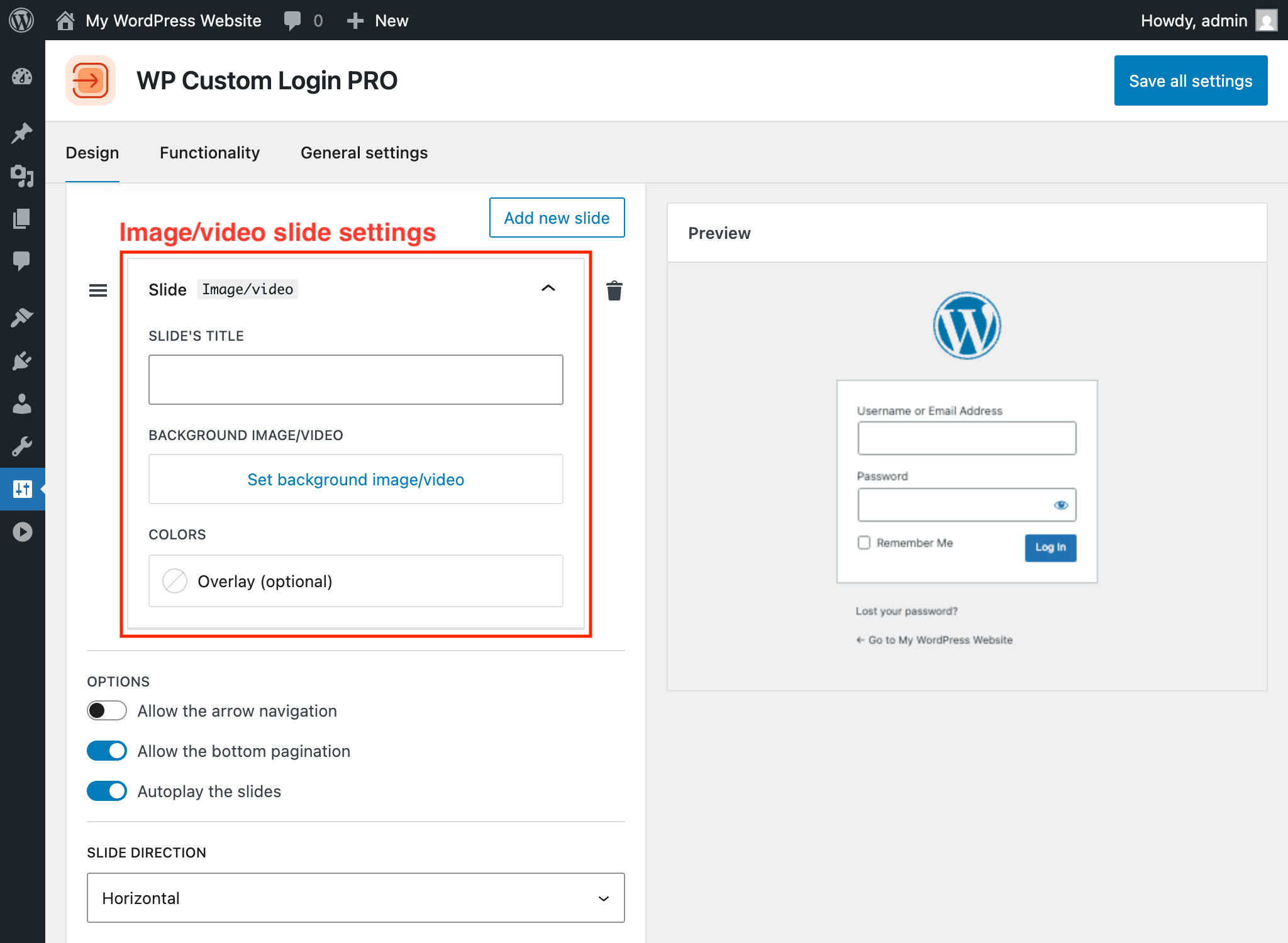
Image/video slides display a media file from your WordPress Media Library. After adding this slide type:
Note (Multisite — Network Admin): The Media Library is not available when configuring settings from the Network Admin dashboard. To upload image or video slides, deactivate the plugin network-wide and activate it on individual sites instead.
- Click Select to open the Media Library and choose an image or video file.
- Optionally set a slide title for your own reference.
- Use the focal point picker to set which part of the image stays centered when the viewport is resized.
- Choose a size/repeat mode to control how the image fills the slide area.
CSS Image Filters
Image/video slides include visual effect controls with nine CSS filters you can adjust:
- Blur — Applies a Gaussian blur effect to the image.
- Brightness — Adjusts the overall brightness of the image.
- Contrast — Increases or decreases the contrast of the image.
- Grayscale — Converts the image toward grayscale.
- Hue-rotate — Rotates the color hues of the image.
- Invert — Inverts the colors of the image.
- Opacity — Controls the transparency of the image.
- Saturate — Adjusts the color saturation of the image.
- Sepia — Applies a warm sepia tone to the image.
Color Overlay
Below the image controls, the Colors section provides an optional Overlay field. This lets you add a solid color or gradient overlay on top of the image or video. Use the alpha channel to make the overlay semi-transparent, which is useful for ensuring text readability over busy images.
Color/Gradient Slides
Color/gradient slides display a static solid color or CSS gradient. After adding this slide type:
- Optionally set a slide title.
- Use the Gradient color picker to select a solid color or gradient. Both the color and gradient pickers are available, along with preset palettes from your theme.
Animated Gradient Slides
Animated gradient slides display a continuously moving gradient animation. After adding this slide type:
- Optionally set a slide title.
- Use the Gradient picker to define the gradient colors.
- Set the Speed in seconds (1-60). Lower values produce faster animations; the default is 15 seconds.
Reordering and Removing Slides
Slides appear as expandable panels within the background section. You can:
- Drag and drop slides to reorder them.
- Remove a slide by clicking the delete button on its panel.
FAQ
Find Answers to Common Questions
Browse these frequently asked questions to get quick answers about our plugin, features, and support.
Will This Plugin Work on My WordPress Website?
This plugin does not depend on any third-party libraries, plugins, or themes. It will work seamlessly on any WordPress website.
Does the Plugin Support My Language?
This plugin is translation-ready, enabling you to easily translate its content into your preferred language using any translation tool or plugin. By default, the plugin is provided in English.
What Are the Technical Requirements for This Plugin?
This plugin requires WordPress version 6.6 or later and PHP version 7.4 or later. It doesn’t require additional libraries or special hosting configurations.
The plugin has been tested up to WordPress 6.9 and PHP 8.3.
What Is Your Refund Policy?
We offer a risk-free, 30-day money-back guarantee. If you’re not satisfied with the plugin for any reason, you can request a full refund within 30 days of your purchase – no questions asked.
Is This Plugin Actively Maintained?
Yes! This plugin is actively maintained and regularly tested for compatibility with the latest versions of WordPress and PHP. For detailed information about updates, please refer to the changelog.
What Happens If I Don’t Renew My License?
You can continue to use the plugin even if your license expires; however, you will no longer receive plugin updates, new features, or access to support. Your license renews automatically each year unless canceled via the Customer Portal.
What Is the Difference Between the Free and PRO Versions?
The free version gives you full control over the login page’s visual design — custom logo, background color and image, form container styling, label and input field customization, primary and secondary button design, checkbox styling, notice and error message colors, under-form link styling, social media icons, custom footer, privacy policy link, language switcher controls, per-language text, and a custom CSS editor. You also get functionality options like disabling autofocus, the error shake animation, and browser autocomplete. Everything is configured from a visual settings page with a live preview.
The PRO version adds 20+ pre-designed templates you can apply in one click, advanced background options (multi-column split-screen layouts, image and video sliders, animated gradients, CSS image filters and color overlays), post-login redirect rules with per-role and per-user targeting, the ability to replace wp-login.php with a custom login URL, and priority support with automatic updates. See the pricing page for details.